
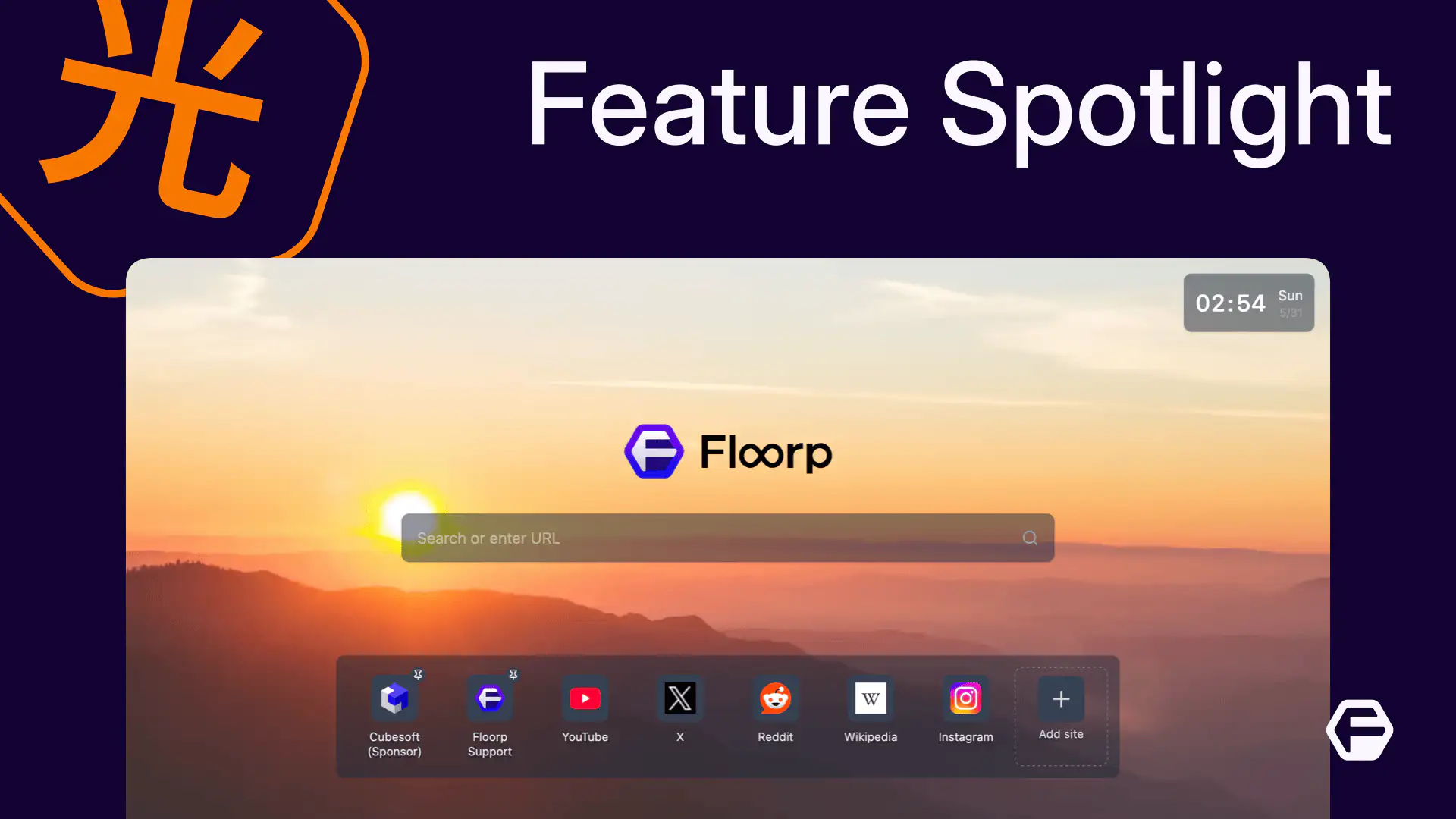
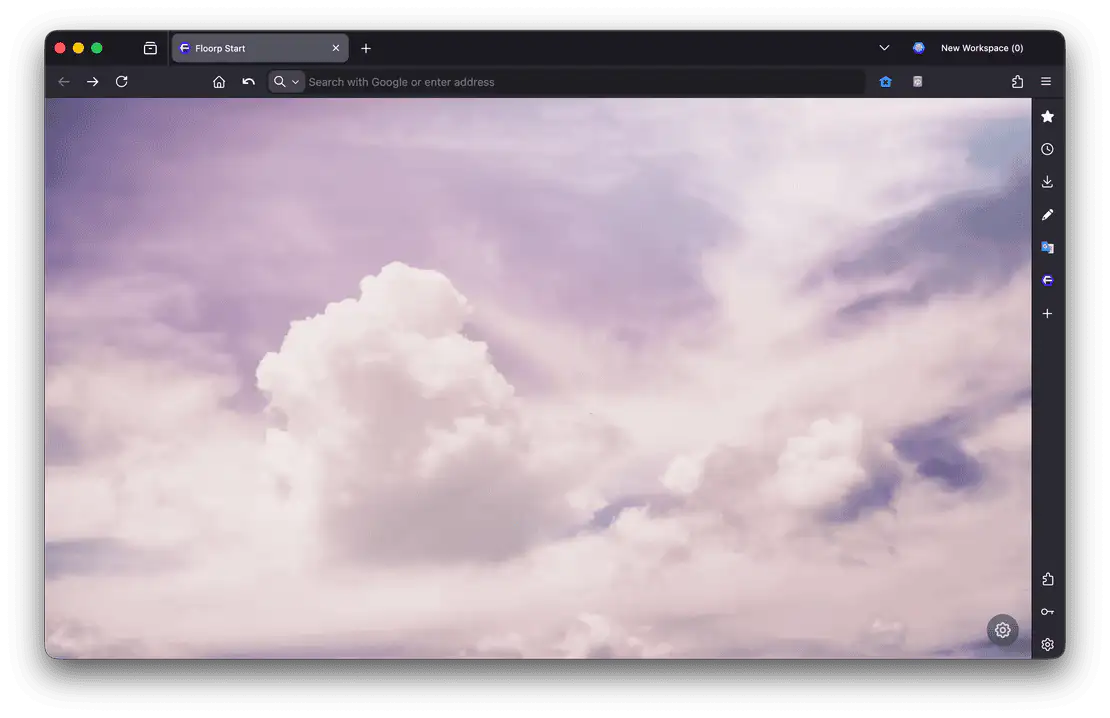
If you are familiar with Firefox, you might have been surprised to see that Floorp's new tab page looks a bit different. This is Floorp Start, our unique new tab page.
Floorp Start comes with a variety of beautiful photos right out of the box, but you can also turn it into a personal space to look at your favorite things. If Floorp Start isn't really your thing, you can easily disable it by following this guide.
In this article, we’ll introduce the basic features of Floorp Start, show you some handy use cases, and explain how to turn it off.
Welcome to Feature Spotlight
This is a series where we shine a spotlight on specific features of Floorp to explain them in a simpler, more concrete way. Unlike the Floorp Docs, we won't cover every single detail here.
We also plan to provide YouTube videos for some articles. We hope this helps you get the most out of your Floorp experience!
Start the Start
Unless you’ve tweaked your settings, the page you see when you open a "New Tab" in Floorp is Floorp Start.
Every time you open a new tab or refresh the page, the background photo changes automatically.
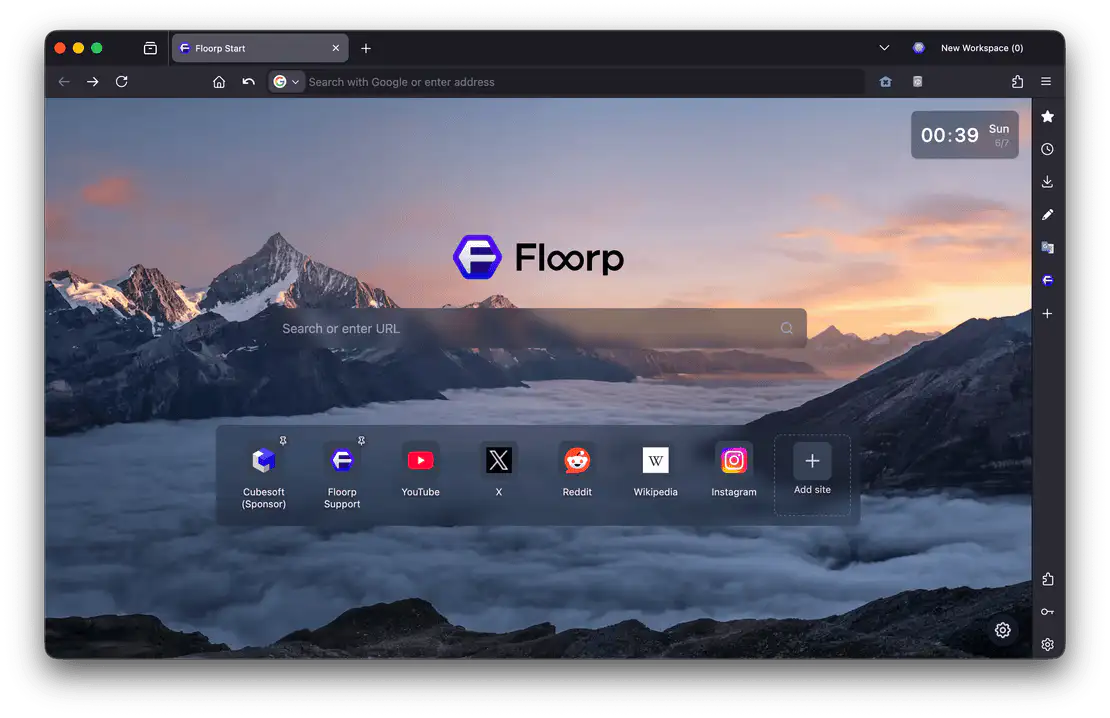
Clicking the search bar in the center allows you to start typing your query directly into the address bar.
TIP
The address bar is the box at the top of your screen that shows the URL of the page you are currently viewing. It's a versatile tool where you can type URLs, search terms, and more.
You might recognize it from other browsers, but Firefox's address bar is surprisingly feature-rich. If you're interested, give it a look—it's pretty cool!
Below the search bar, you'll find the Top Sites section. It displays icons for various websites, and you can click on any of them.
At first, it only shows standard websites, but as you use Floorp more, it will adapt and suggest sites you visit frequently. It’s a bit like breaking in a fine leather product, I guess.
Customizing Top Sites
The Top Sites in Floorp Start are similar to Shortcuts in Firefox or Most Visited Sites in Chrome. Unlike Speed Dials or Custom Shortcuts, the sites displayed here rotate automatically.
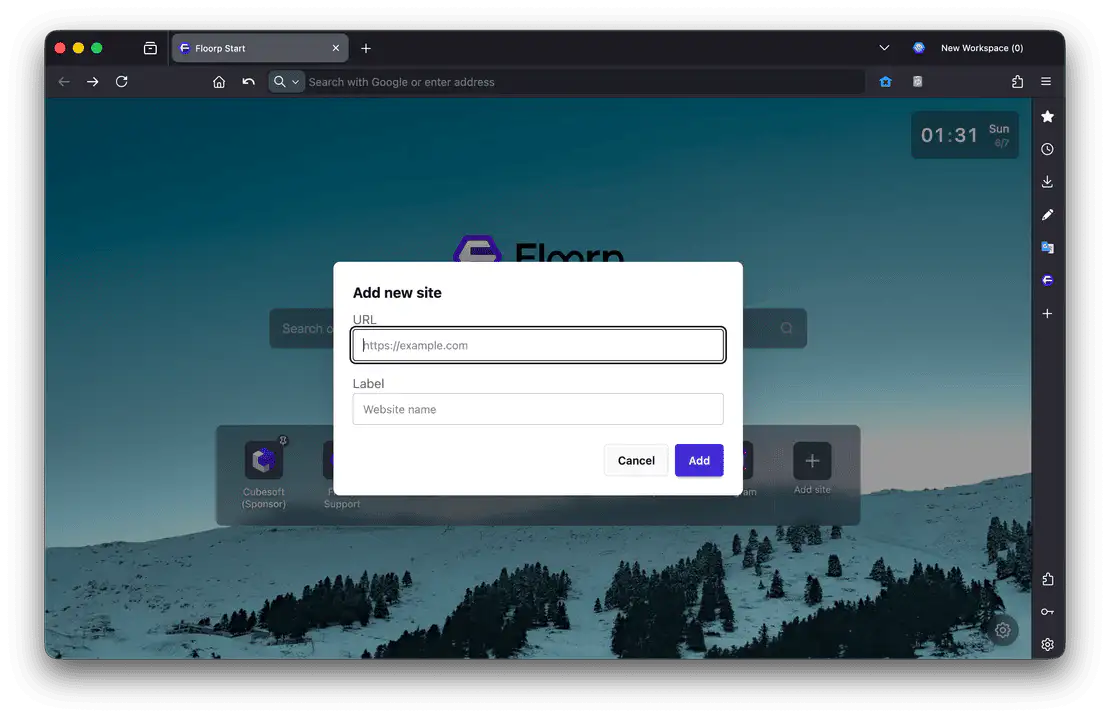
If you want a website to always stay on your Top Sites, you can pin it. Just click "Add site".
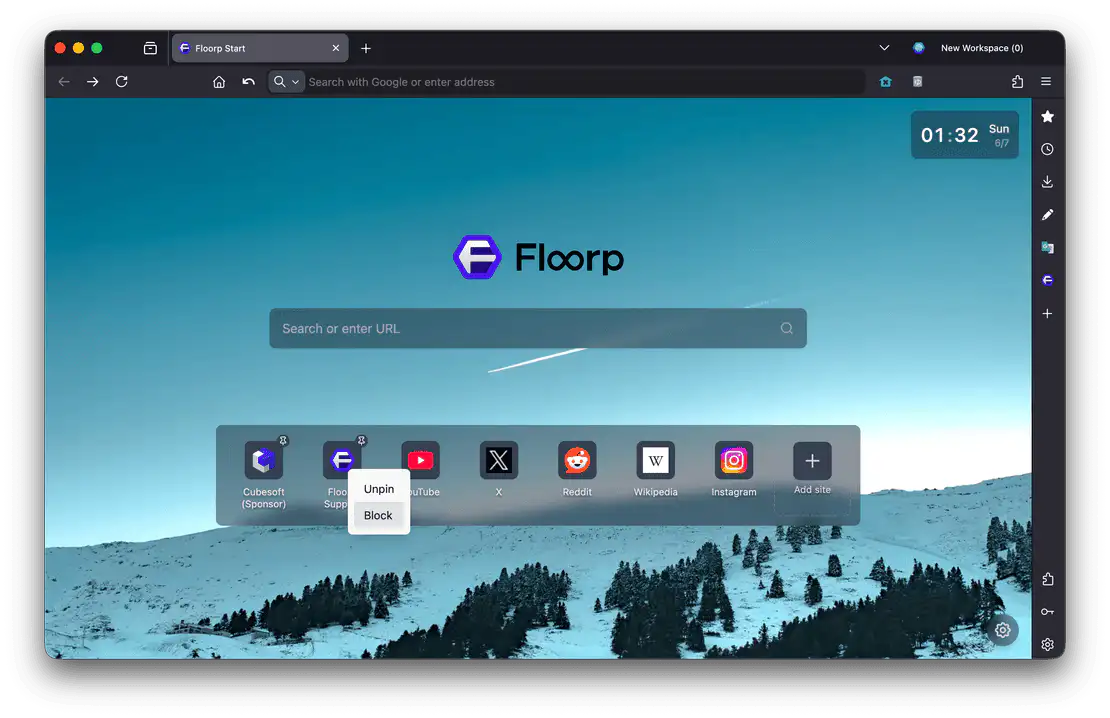
If a site pops up that you’d rather not see, you can say goodbye to it for good.
Right-click the suggested site and click Block. After a quick confirmation, the site will be removed from your Top Sites.
If you change your mind, you can unblock it anytime—you can always make up!
TIP
There are many ways to handle your favorite sites, such as bookmarks, tab groups, and workspaces. For instance, I combine workspaces and tab groups to keep my frequently used sites.
Feel free to explore and find the style that works best for you!
Tweaking the Settings
You can access the Floorp Start settings via the gear icon in the bottom-right corner of the page. See two gear icons? The one you want to click right now is the inner one.
Explaining every single setting would take all day, so let’s just do a quick overview.
By changing the displayed elements, you can hide the search bar or Top Sites, or slightly tweak the layout. Turn everything off, and you can enjoy a clean, almost wallpaper-only view.
If you check "Disable Floorp Start" and restart Floorp, your new tab page will revert to the standard Firefox Home page. The Home settings (about:preferences#home) will also become available again.
Changing the Background Image
Instead of the pre-selected photos, you can use your favorite image as the background for Floorp Start. According to our extensive—yet completely unverified—research, most users tend to set their favorite character or person as the background.
Custom Image sets a single chosen image as your wallpaper. Images from Folder will randomly display pictures from a selected folder—think of it as a personalized version of the default random images.
Slideshow is an extra feature available for both "Random Image" and "Images from Folder". While the image usually only changes when you reload, this feature lets it automatically cycle through images over time. You can adjust the interval down to the second.

Start from the Start?
Floorp Start keeps on-screen distractions to a minimum, allowing you to use your new tab space freely. It’s perfect for those who prefer simplicity or want to focus on their wallpaper.
Of course, if you prefer the standard Firefox new tab page or extensions from the Firefox Browser ADD-ONS store, Floorp will still give you a great experience.
If you like Floorp Start, go ahead and set your favorite background to make it your own!